
How to Edit Primary, Secondary, Tertiary Buttons, Squarespace
Buttons are one of the strongest visual signals on your website. They guide visitors, highlight your most important actions, and shape how users move through your content. Squarespace gives you three global button styles — Primary, Secondary, and Tertiary — so you can create a clear visual hierarchy and maintain consistent branding across every page. Whether you are refining your design system or improving conversions, here is how to customize all three button styles with clarity and confidence.
How to Edit Primary, Secondary, and Tertiary Buttons in Squarespace
Steps
Open your Squarespace site editor.
Click Design in the left panel.
Select Site Styles.
Scroll to the Buttons section.
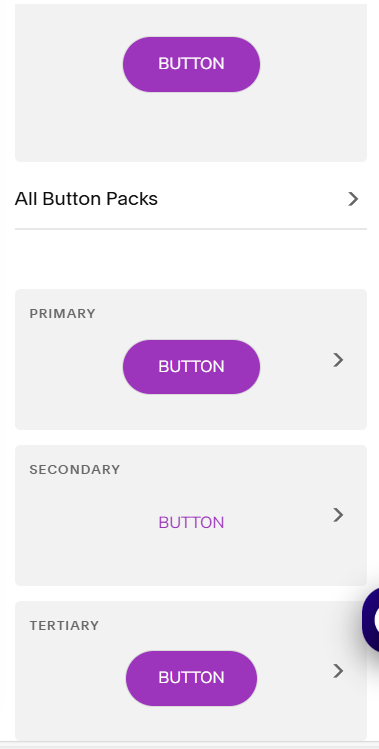
Choose the button style you want to edit: Primary, Secondary, or Tertiary. Adjust global settings such as fill or outline, corner radius, padding, font weight, text size, background color, border color, and hover effects. Click Save to apply your changes across your entire site.
What Each Button Style Is Designed For
Primary Button
This is your strongest call to action. Use it for actions like Book Now, Contact, Start Here, or Purchase.
Secondary Button
This is a softer but still important action. Use it for actions like Learn More, View Services, or Read More.
Tertiary Button
This is minimal and subtle. Use it for supporting links, optional actions, or light navigation.
Image placement 2 Suggested image: All three button styles displayed side by side Alt text: Squarespace button hierarchy primary secondary tertiary buttons how to edit button styles in squarespace

How Button Styles Influence User Experience
A clear button hierarchy helps visitors understand what matters most. When your Primary, Secondary, and Tertiary buttons are visually distinct, users can navigate more confidently, identify your main call to action, follow your intended conversion path, and experience a cleaner, more intentional layout. This is especially important for service pages, portfolios, and sales‑driven content.
Editing Buttons in Squarespace 7.1
Squarespace 7.1 uses a unified styling system, which means your button edits apply globally. This ensures consistent branding, faster design updates, cleaner layouts, and predictable styling across all pages. Older versions of Squarespace required template‑specific button settings, but 7.1 makes the process simple and universal.

Ready to Elevate Your Button Design
If you want help refining your button hierarchy, improving your calls to action, or creating a more polished visual system in Squarespace, I would be happy to support you. Strong button styling is one of the fastest ways to improve clarity, conversions, and overall user experience.
