Scrolling text is a simple way to add motion and highlight key messages on your site. Squarespace now includes a native Scrolling Text block, so you can create smooth, modern marquee‑style text without touching any code. If you’ve been searching for how to add scrolling text to Squarespace or looking for a Squarespace scrolling text tutorial, this guide walks you through the exact steps.
How to Add Scrolling Text to Squarespace
Steps:
Open the page where you want the scrolling text.
Click Add Block. Search for Scrolling Text.
Select the Scrolling Text block.
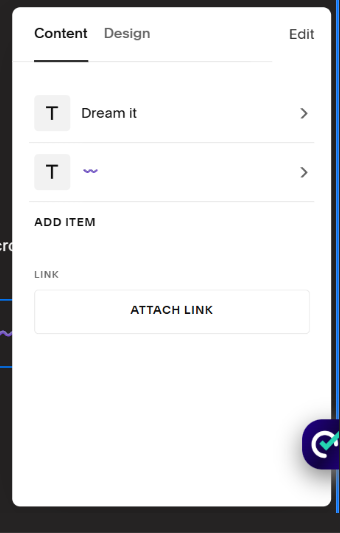
Type your message into the text field.
Adjust speed, direction, and styling in the block settings.
Click Save.
Your scrolling text will now animate natively across your page.
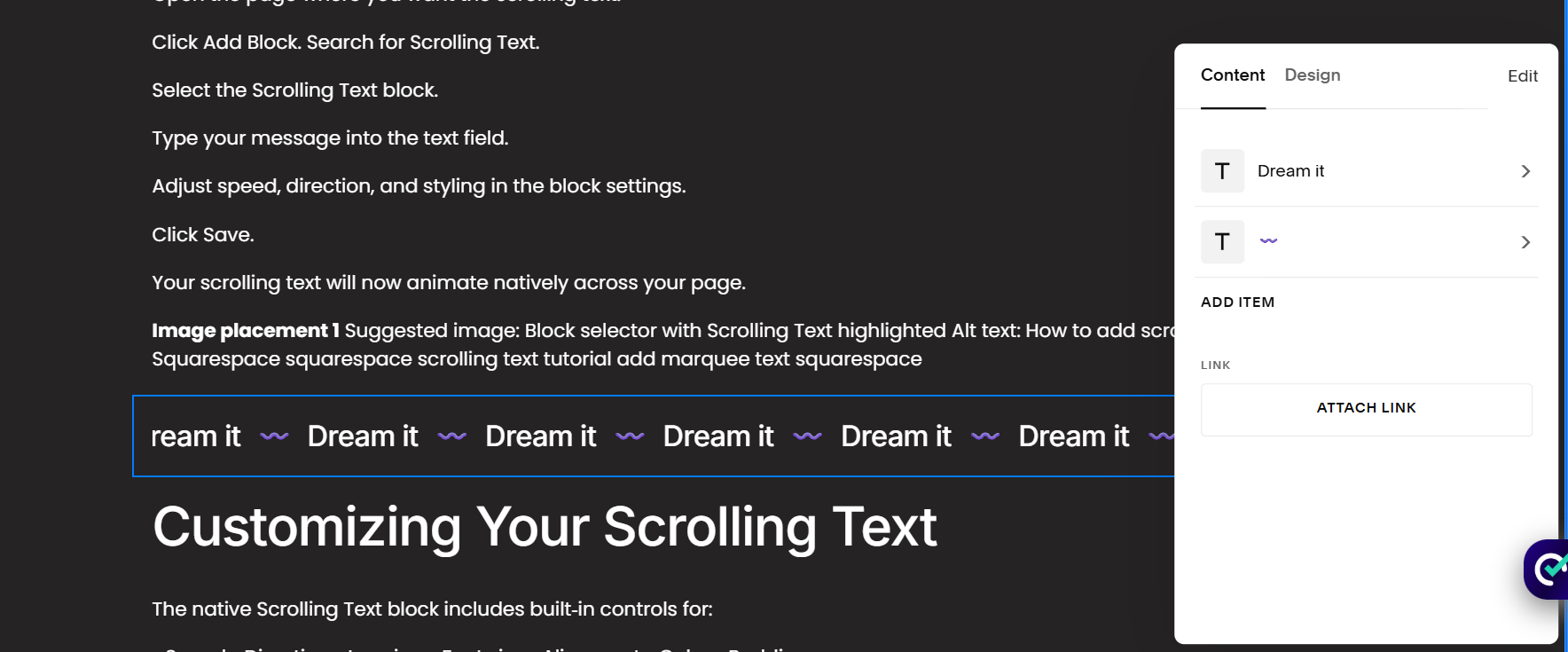
Customizing Your Scrolling Text
The native Scrolling Text block includes built‑in controls for:
• Speed
•Direction
• Looping
• Font size
• Alignment
• Color
• Padding
This gives you full creative control without needing custom code.
Where Scrolling Text Works Best
Scrolling text is ideal for:
• Announcements
• Sales or promotions
• Event dates
• Taglines
• Important updates
• Highlighting new content
Use it sparingly to keep your site feeling clean and intentional.
Scrolling Text in Squarespace 7.1
Squarespace 7.1 includes the Scrolling Text block as part of its modern content tools. It works seamlessly across all templates and layouts, and it’s fully responsive on mobile and desktop.
No plugins, no CSS, no code. Just a native block that works instantly.
Ready to Add More Motion to Your Site?
If you want help adding movement, improving visual hierarchy, or creating more engaging layouts in Squarespace, I’d be happy to support you. Small touches like scrolling text can bring energy and personality to your site when used thoughtfully.