
How to Add an Announcement Bar to Squarespace
The announcement bar is a simple way to display an important message at the top of your website. It’s perfect for promoting sales, sharing updates, changing business hours, or highlighting anything time‑sensitive. Once enabled, it appears across your entire site except on cover pages, and it can’t be turned on or off per page.

Accessing this feature: The announcement bar is available on Core, Plus, Advanced, Business, Commerce Basic, and Commerce Advanced plans.
Create an announcement bar
Computer
To add an announcement bar:
Open the Announcement Bar panel. Select Enable Announcement Bar from the dropdown menu. Enter the text for the announcement bar in the field. You can make the text bold or italicized and create text links. To make the whole announcement bar a link, enter a web address in the Clickthrough URL or click gear icon to set up different types of links. Click Save to publish the announcement bar.
Squarespace app
Tap More, tap Marketing, then tap Announcement Bar. Tap to switch on the Show toggle. Enter the text for the announcement bar in the field. You can style the text and create text links. Tap Link to add a link to a page, a file, or other content. Tap Save to publish your announcement bar.
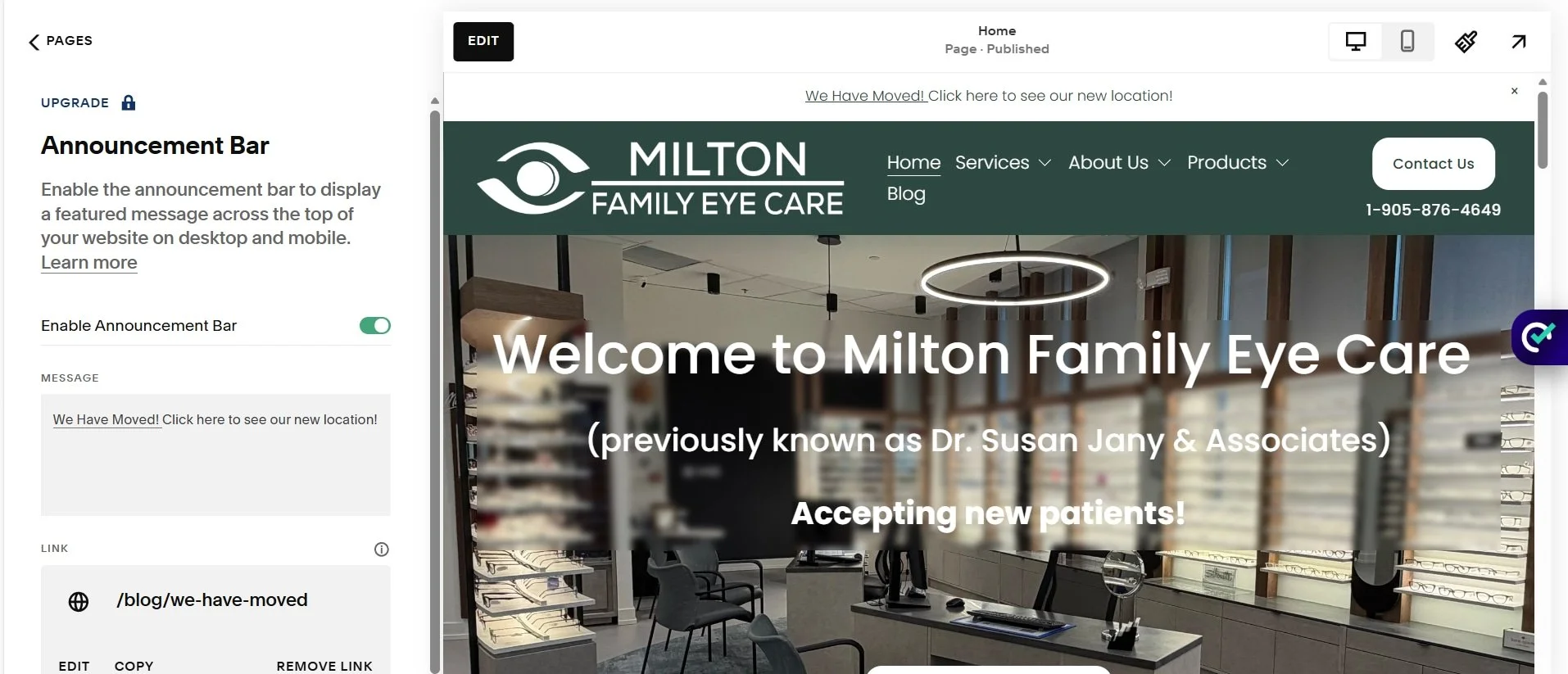
Style the announcement bar
You can customize the announcement bar so it matches your brand or stands out visually.
Version 7.1
The announcement bar follows your general font and color settings, but you can style it separately.
To change the font: While editing a page, open site styles, then click > next to Fonts. Click Assign Styles. Under Announcement Bar, click Text. Select from preset styles and sizes, or choose Custom. Click Save.
To change the color: While editing a page, open site styles, then click > next to Colors. Click the pencil icon on the theme your announcement bar is following. Under Announcement Bar, adjust the Background and Text tweaks. Click Save.
Version 7.0
To customize the appearance of the announcement bar:
Open the Site styles panel. Scroll down to the Announcement Bar style tweaks. You can edit the background color, text color, and font. Click Save.

Reset visibility
If you close the announcement bar while logged in, a Reset Visibility button appears at the bottom of the announcement bar panel. Click Reset Visibility to make it reappear for your own view while editing.
This only resets visibility for you. Visitors who closed it won’t see it again unless you edit and save the announcement bar.
Disable the announcement bar
Computer
To disable the announcement bar:
Open the Announcement bar panel. Select Disable announcement bar from the dropdown menu.
Squarespace app
Tap More, tap Marketing, then tap Announcement Bar. Switch off the Show toggle.
Need help tuning your Squarespace announcement bar? Get in touch with a Squarespace expert at Chandra Web Design and we’ll make it stand out and convert.
