
How to Edit your Squarespace Lockscreen
A lock screen lets you hide your site or specific pages behind a password. It’s useful when you’re still building your site, want to restrict access, or need a private area for clients or internal use. When a page or site is password‑protected, visitors see a lock screen and must enter the password to continue.

Enabling a lock screen
Accessing this feature:
Lock screens are available on both paid and trial sites.
To enable a lock screen:
Set a site‑wide or page‑specific password.
Design and customize your lock screen. To learn more, review the sections below.
Share the password with anyone you want to preview your site.
Customizing your lock screen
You can fully customize the look of your lock screen in the Design panel so it matches your brand. This is helpful for:
Client‑only content
Under‑construction pages
Private internal pages
Design best practices
Keep your lock screen simple
It should guide visitors toward one action: entering the password. Layouts are intentionally minimal.
One lock screen for your whole site
You can’t create different lock screens for different pages.
No blocks
Lock screens don’t use sections or blocks. You start with a preset layout and customize it using the lock screen tools.
Choose a new layout
To choose a layout for your lock screen:
Open the Lock Screen panel.
The panel opens with a preview of the lock screen so your changes appear in real time. You’ll start with a blank design.
Click Change layout to select a new layout for your lock screen. You’ll change the background image later, so focus more on the placement of the text and password fields now.
To choose a layout, hover over it and click Select.
Click Save.
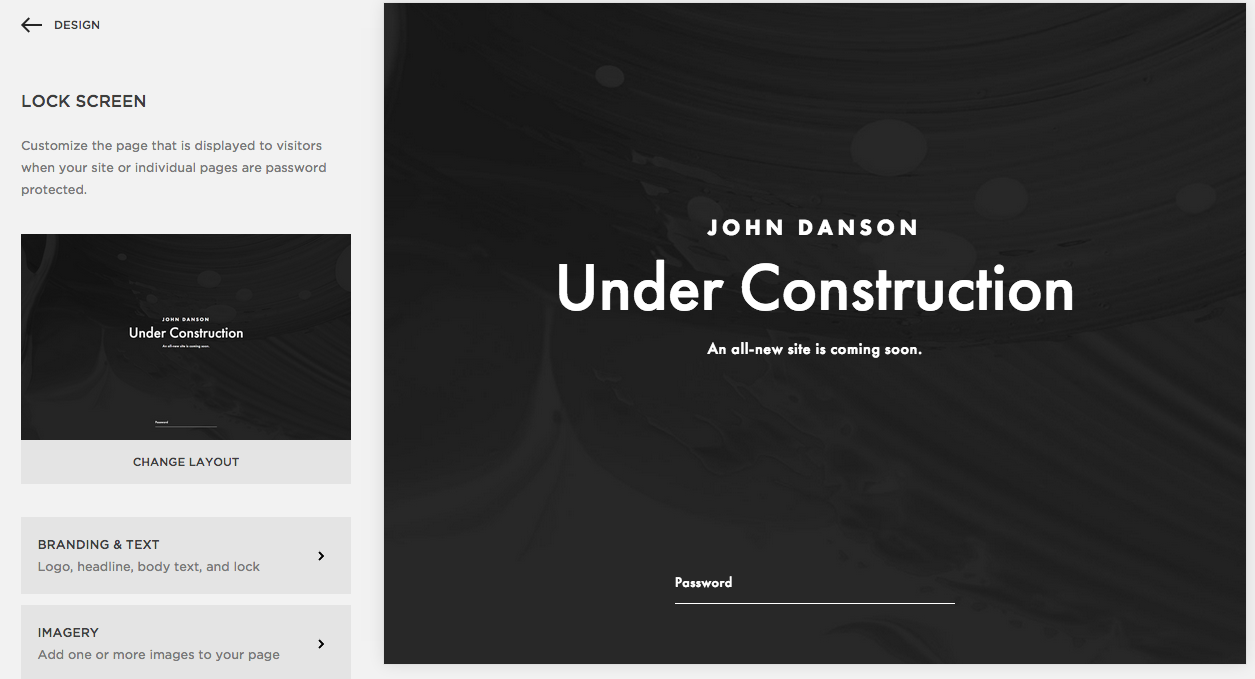
Add branding and text
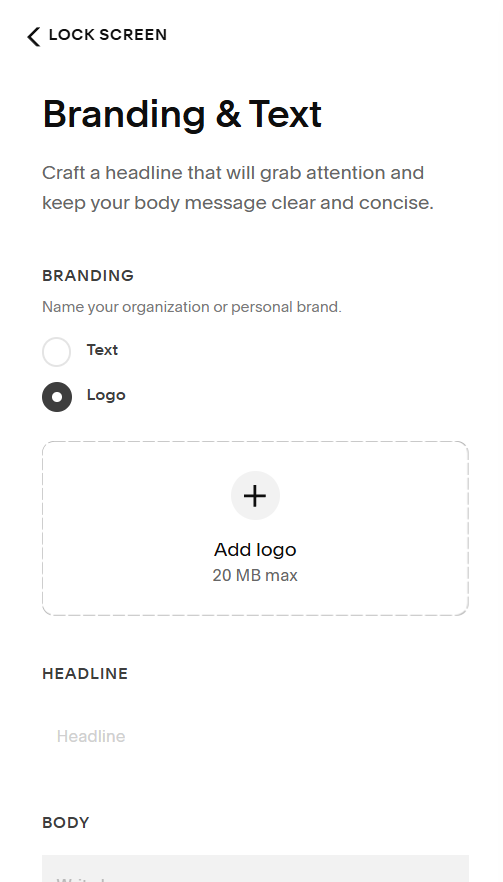
Use the Branding & Text panel to add your logo, headline, or supporting text.
You can:
Add branding text or a logo
Add a page headline
Add longer body text
Hide or show the lock icon
To add a logo image:
Under Branding, choose Logo, then click the + icon
Upload an image from your device by clicking Upload file. You can reuse an image by clicking Select from library.
To confirm your changes, click Save.
After adding an image, you can:
Edit your image.
Set your image's focal point by clicking the three dots, then clicking Focal point.
Change the image by clicking Replace.
Delete the image by clicking the three dots, then clicking Remove.
Keep in mind:
Branding and text display varies by layout.
You can’t show a logo and branding text at the same time.
Site titles and logos on lock screens don’t link to the homepage.
The browser tab will always show your site title plus “Secure.”
Add background images or video
Use the Media panel to add a full‑bleed background image, video, or color.
You can:
Upload background images
Add stock images
Reuse images from your library
Add a looping, silent background video using an embeddable URL
Set a background color
Notes:
You can’t upload video files directly.
Format your images before uploading.
You can edit images using the built‑in editor.
You can upload multiple images for a slideshow or grid background.
Large images may slow load time.
Images and videos will crop depending on screen size and layout.
Use a background color
To use a solid color instead of an image or video, choose None. Then update the background color in the Style panel.
Style the lock screen
Use the Style panel to adjust typography and colors. These settings are separate from your main site styles.
Click Style in the Lock Screen panel.
Use the options to style the lock screen. As you change the style using the tweaks in the panel, the preview of the lock screen will change.
When you’re done, click Save.
Password field
Use the tweaks in the Password section to adjust the password field.
If you choose Style: rectangle, you can adjust the background color and font color independently.
If you choose Style: underlined:
The Color tweak affects both the underline and the text.
The text displays 50% lighter than the underline.
If your text is displaying as a color and you want it to be gray, move the selector from the right side of the color picker to the left.

Need help editing your lock screen? Get in touch with a Squarespace expert today!
