
How to Pin a Website to Your Squarespace Dashboard
If you manage multiple Squarespace websites, whether for clients, your business, or personal projects, your dashboard can get crowded fast. That is why knowing how to pin a website to Squarespace dashboard is such a time saver. Pinning a site keeps it at the top of your dashboard so you can access it instantly without scrolling or searching.
Squarespace recently updated the dashboard interface, and the pinning feature is now easier to use than ever. Here is a simple, clear walkthrough of how it works.
Why Pinning a Website Matters
Before we jump into how to pin a website to Squarespace dashboard, it is worth understanding why this feature is so useful, especially if you are a designer, freelancer, or business owner managing multiple sites.
Pinning helps you:
Keep your most active sites at the top Reduce time spent searching through your dashboard Stay organized when juggling multiple projects Prioritize client or business sites Create a cleaner, more efficient workflow
If you are managing more than one Squarespace website, this tiny feature makes a big difference.
How to Pin a Website to Squarespace Dashboard
Here is the exact process for how to pin a website to Squarespace dashboard in the latest version.
1. Log into your Squarespace account
Go to your main dashboard where all your sites are listed.

2. Hover over the website you want to pin
When you hover over a site card, you will see additional icons appear.
3. Click the More Options (•••) icon
This opens a small dropdown menu with management options.
4. Select Pin to top
Once you click it, the website instantly moves to the top of your dashboard.

Image placement: Insert a screenshot of the three dot menu with Pin to top highlighted Alt text: how to pin a website to Squarespace dashboard using the pin to top option
5. Confirm the site is now pinned
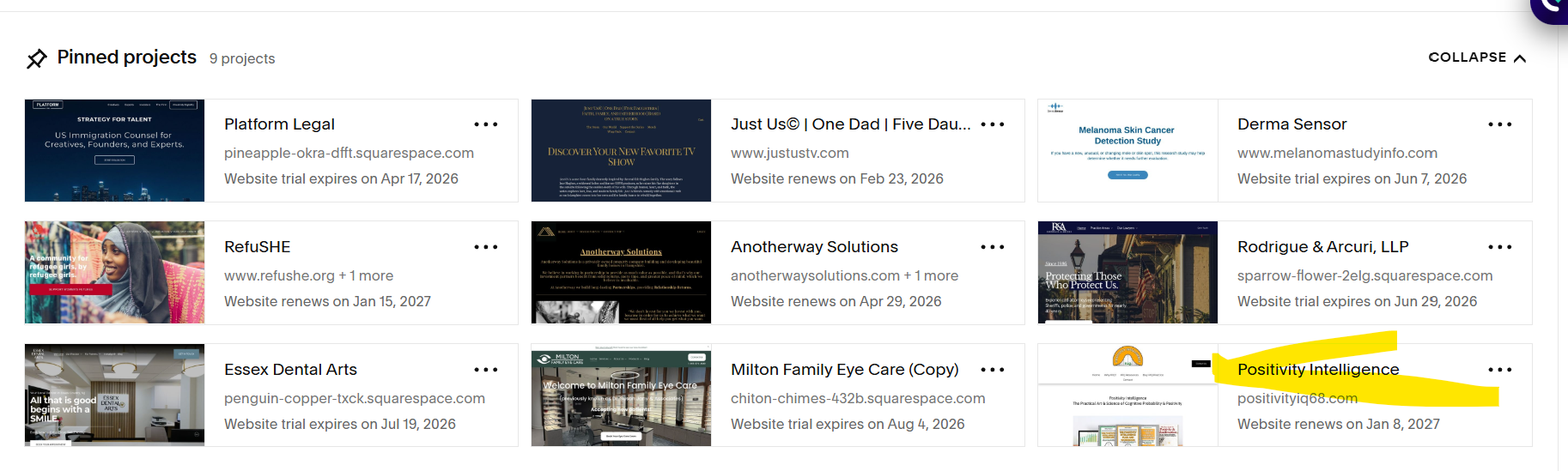
Pinned sites appear in a dedicated section at the top of your dashboard for quick access.
Image placement: Insert a screenshot of a pinned Squarespace site at the top of the dashboard Alt text: how to pin a website to Squarespace dashboard pinned site example
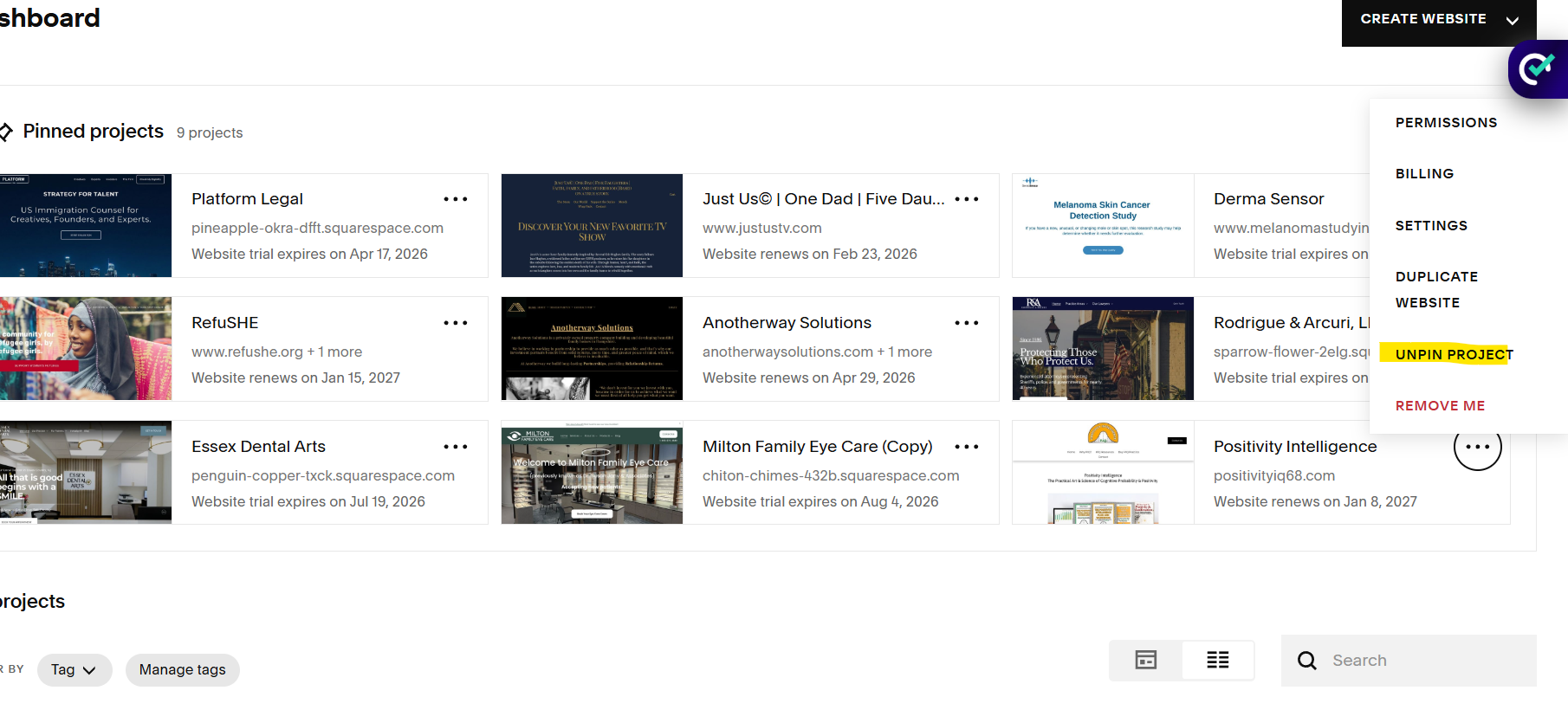
How to Unpin a Website
If you ever want to reorganize your dashboard:
Hover over the pinned site Click the three dot menu Select Unpin
The site will return to the regular list.
Tips for Staying Organized in Squarespace
Now that you know how to pin a website to Squarespace dashboard, here are a few extra tips to keep your workspace clean.
Pin your most active client projects Unpin completed sites to reduce clutter Group similar sites together by pinning them in order Use descriptive site names so you can find them faster Pin your own business site so it is always at the top
These small habits make your dashboard feel more intentional and easier to navigate.
Final Thoughts
Learning how to pin a website to Squarespace dashboard is a simple but powerful way to streamline your workflow, especially if you manage multiple sites. It keeps your most important projects front and center and saves you time every time you log in.
If you want help organizing your Squarespace setup, improving your site, or building something new, I would love to support you. Book a call and let us make your Squarespace experience smoother, faster, and more strategic.
