
How to Use Squarespace Layout Switcher: A Complete, Beginner‑Friendly Guide
If you’ve ever wished you could redesign a section in Squarespace without rebuilding it from scratch, learning how to use Squarespace Layout Switcher will change the way you work. This tool lets you instantly swap the structure of a section while keeping all your content intact — no dragging blocks around, no starting over, no wasted time.
Whether you’re refreshing your homepage, testing new layouts, or giving your site a modern update, the Layout Switcher is one of the fastest ways to elevate your design.
What the Squarespace Layout Switcher Actually Does
The Layout Switcher allows you to change the layout of a section with one click. Instead of manually rearranging blocks, you simply choose a new preset and Squarespace automatically restructures the content for you.
It’s perfect for:
Updating older pages
Improving readability
Testing new visual styles
Speeding up your design workflow
Keeping your branding consistent

How to Use Squarespace Layout Switcher (Step‑by‑Step)
Here’s the exact process for how to use Squarespace Layout Switcher on any supported section.
1. Open the page editor
Click Edit on the page you want to modify.
2. Hover over the section
Move your cursor over the section you want to update.
3. Click “Switch Layout”
A small layout switcher icon will appear. Click it to open the layout options.

4. Choose a new layout
Squarespace will display a variety of layout presets. Select the one that fits your design goals.
5. Save your changes
Click Save to apply the new layout instantly.
Your content stays exactly the same — only the structure changes.
Why the Layout Switcher Is So Useful
Once you understand how to use Squarespace Layout Switcher, you unlock a ton of design flexibility without extra effort.
It speeds up your workflow
You can redesign entire sections in seconds instead of manually rearranging blocks.
It keeps your branding consistent
Switching layouts helps you match the look and feel of your site without rebuilding content.
It improves readability
Cleaner layouts make your content easier to digest — especially on mobile.
It’s perfect for A/B testing
Duplicate a section, switch the layout, and compare which version performs better.
It’s ideal for non‑designers
Even if you’re not a designer, the Layout Switcher gives you professional‑looking results with minimal effort.
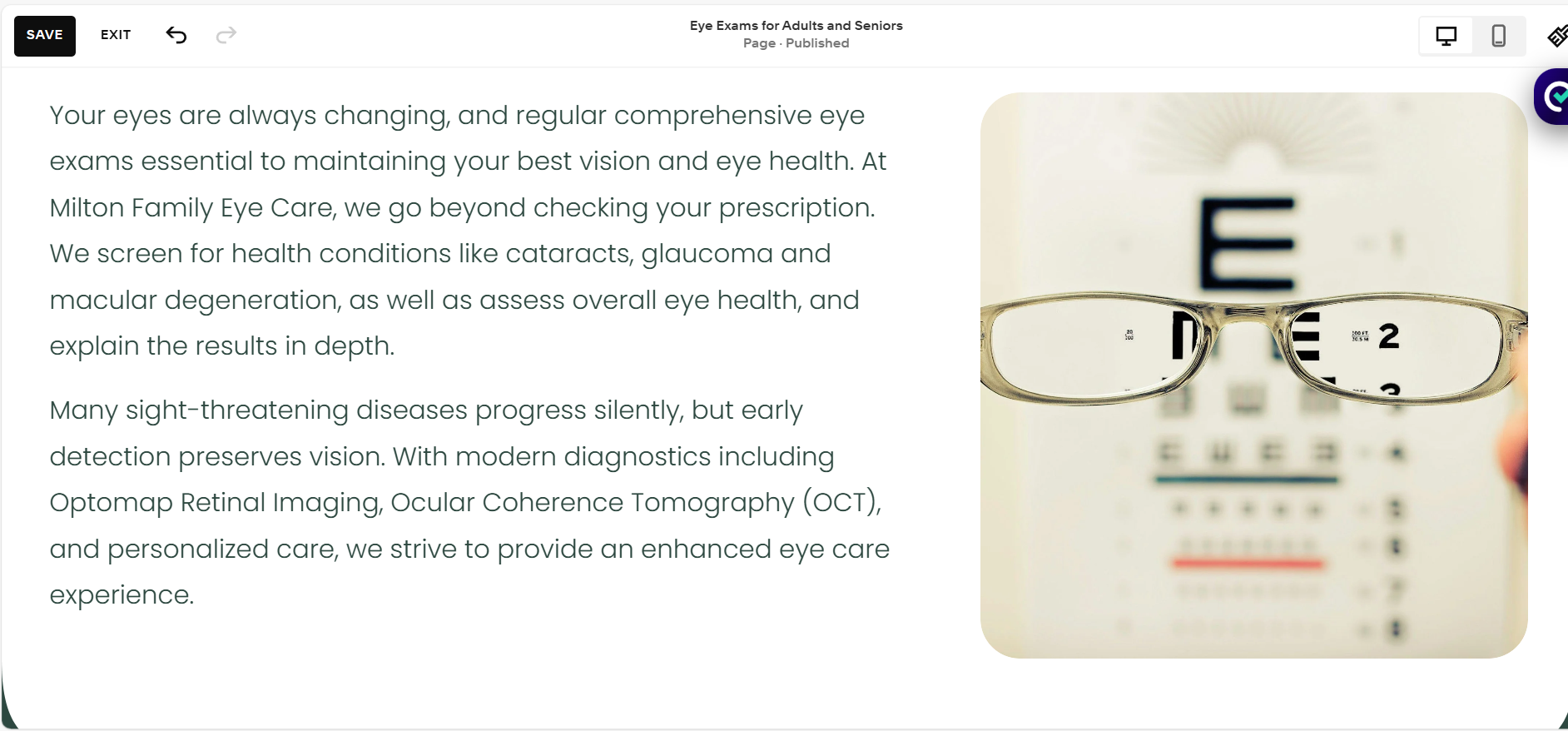
Image placement: Insert a before‑and‑after comparison of a section after switching layouts Alt text: how to use Squarespace Layout Switcher to transform a section layout instantly Purpose: Demonstrates the impact of switching layouts

Before Layout Edit
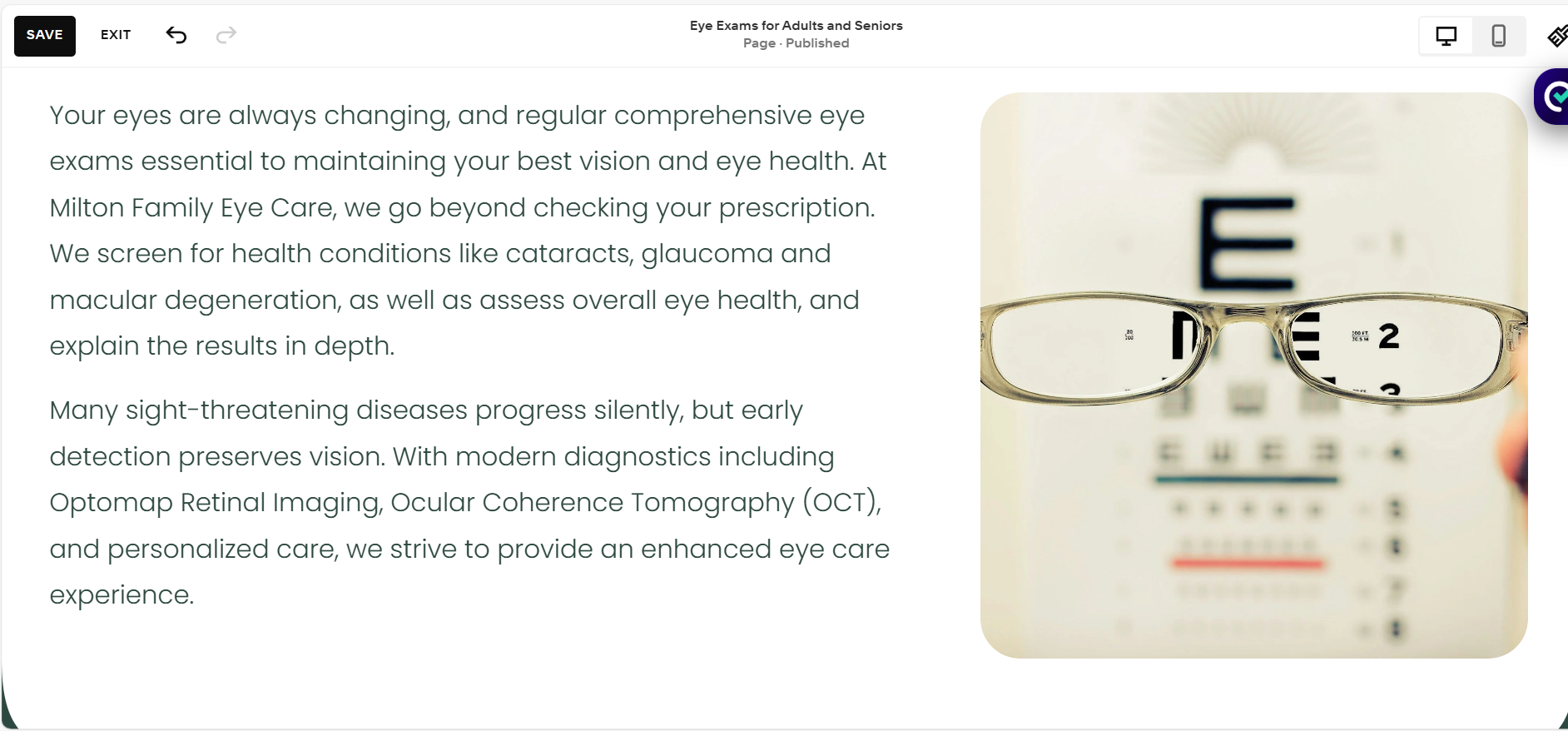
After Layout Edit
Tips for Getting the Most Out of the Layout Switcher
Try multiple layouts before choosing one — it only takes a click
Use it to modernize older pages without rebuilding them
Combine it with Fluid Engine for even more flexibility
Duplicate sections first if you want to test variations
Always preview on mobile — layout changes can shift spacing
These small habits make the Layout Switcher even more powerful.
Final Thoughts
Learning how to use Squarespace Layout Switcher is one of the easiest ways to elevate your website design. It’s fast, flexible, and perfect for anyone who wants a cleaner, more modern layout without rebuilding entire sections.
If you want help improving your Squarespace design, optimizing your layouts, or giving your website a full refresh, I’d love to support you. Book a call and let’s build something beautiful together.
