
How to Screenshot a Whole Webpage
If you’ve ever tried to capture a long webpage, you already know the default screenshot tools on your computer only grab what’s visible on your screen. That’s why so many people search for how to screenshot an entire webpage without needing complicated software. The good news is that there’s a simple, reliable method that works on any website.
Below is the easiest way to do it, followed by helpful tips, reasons you might need full‑page screenshots, and a clean wrap‑up.
The Easiest Way to Screenshot an Entire Webpage
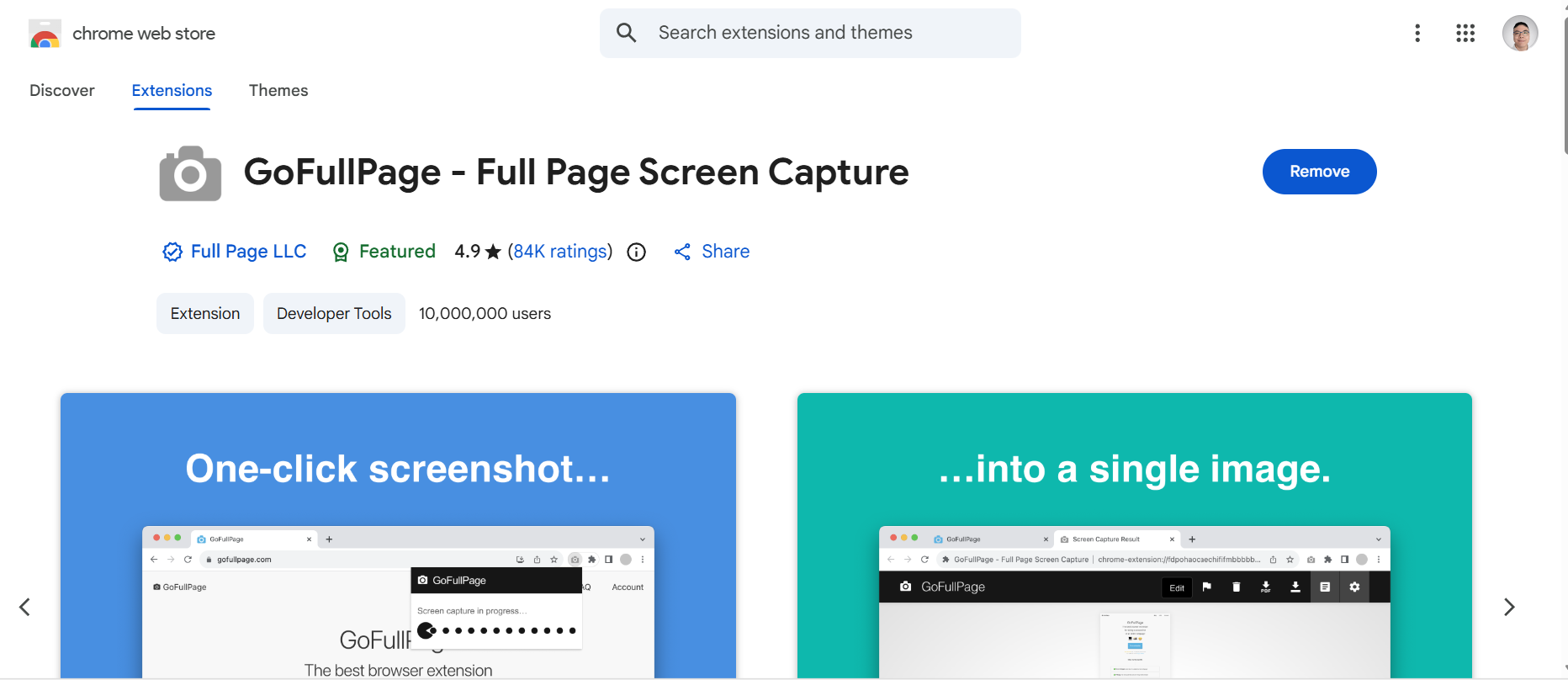
The fastest and most reliable method for how to screenshot an entire webpage is by using a free browser extension called GoFullPage. It works on any site, scrolls automatically, and gives you a clean, full‑length capture.
Step 1: Install GoFullPage
Search for “GoFullPage Chrome extension” and add it to your browser.
Step 2: Open the webpage you want to capture
Navigate to the page you want to screenshot.
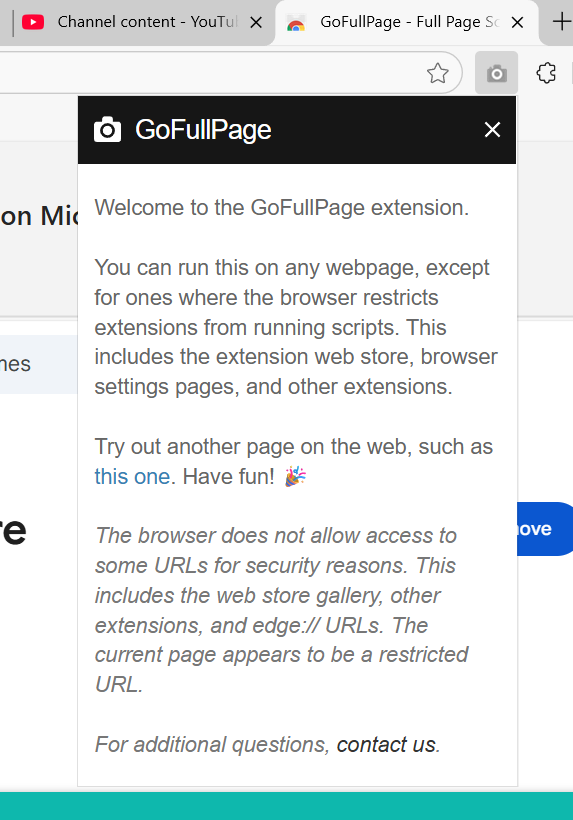
Step 3: Click the GoFullPage icon
The extension scrolls the page from top to bottom and captures everything automatically.
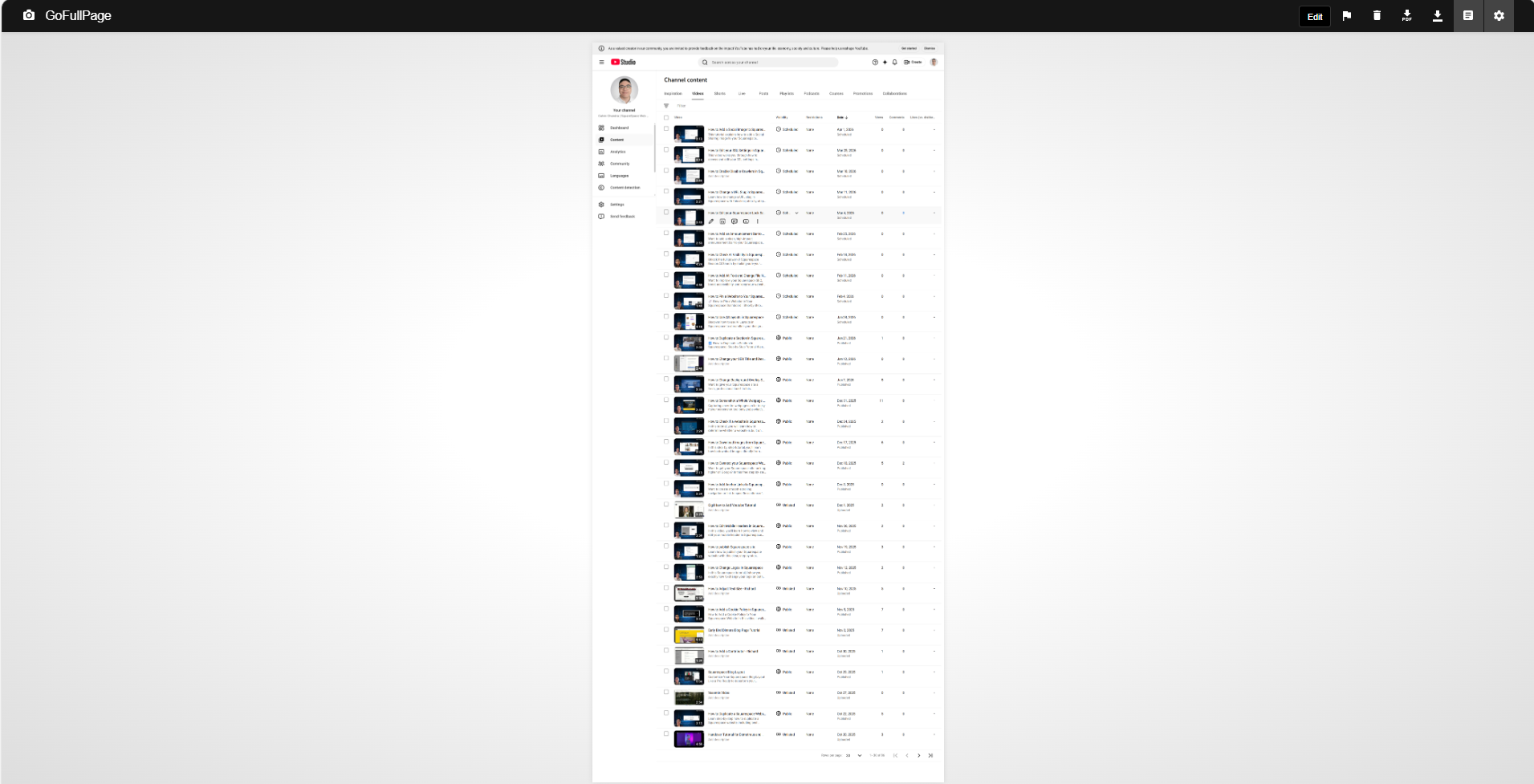
Step 4: Download your screenshot
Once the capture is complete, download it as a PNG, JPG, or PDF.
That’s all you need. No stitching images together, no manual scrolling, no extra software.
Tips for Cleaner Full‑Page Screenshots
Once you know how to screenshot an entire webpage, a few small adjustments can help you get better results.
Make sure the page is fully loaded before capturing Close pop‑ups, chat widgets, or sticky banners Zoom out slightly if the page is extremely long Use the PDF option for client presentations or documentation
Why You Might Need a Full‑Page Screenshot
People look up how to screenshot an entire webpage for all kinds of reasons. Full‑page screenshots are especially useful if you work in design, development, marketing, or content creation.
They help you:
Capture entire layouts for design reference Document a webpage before redesigning it Share long pages with clients or team members Record website issues for support or QA Archive content that may change or be removed

Final Thoughts
Learning how to screenshot an entire webpage is one of those small skills that makes your workflow smoother and more efficient. Whether you’re saving inspiration, documenting a project, or sharing a long page with a client, GoFullPage keeps the process simple and accessible.
Need help with your Squarespace website or looking for a redesign? I’m here to help!
