How to Style Background Images in Squarespace
If you’re running a business in Toronto, your website needs to look sharp, modern, and easy to read. One of the simplest ways to elevate your Squarespace design is by adjusting the background image styling — specifically the background width and overlay. These small tweaks can dramatically improve how your content appears, especially if you’re using bold photography or Toronto‑based visuals like skyline shots, storefronts, or lifestyle images.
Here’s a clear breakdown of how to style your background images in Squarespace, plus why it matters for Toronto brands.
How to Access Background Image Settings
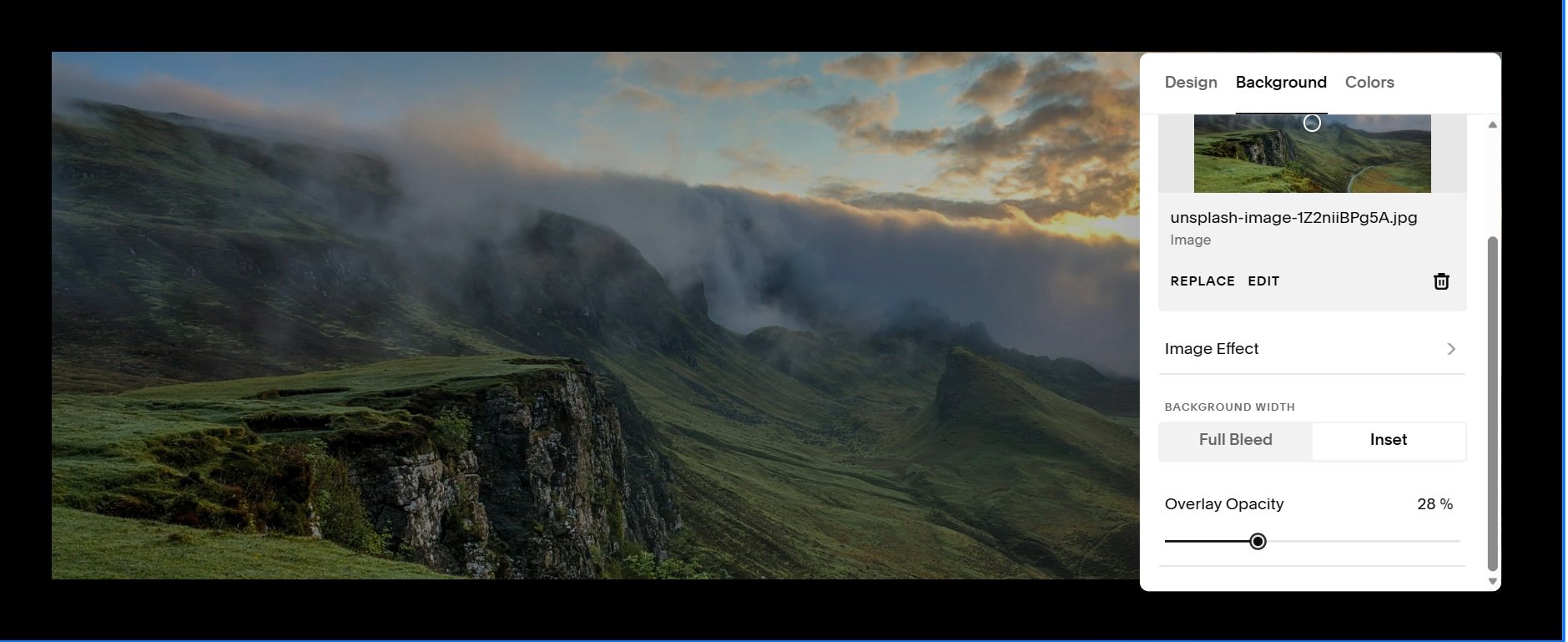
To style the background image, click Edit on the page, click the pencil icon on the banner's section, then click Background. This is where you’ll find the controls for Background Width and Overlay Opacity.

Background Width Options
Squarespace gives you two layout styles that determine how your background image sits on the page.
Full Bleed
Full Bleed stretches your image across the entire browser width. This is the go‑to option for hero banners and is especially effective for Toronto businesses using wide, cinematic images — think Toronto skyline shots, restaurant interiors, or lifestyle photography.

Inset
Inset pulls the image inward and adds a border around it. This can create a clean, editorial look. When using Inset, you can also customize the border color to match your brand palette.

Overlay Opacity
Overlay Opacity controls how strong the color overlay appears on top of your background image. This is what helps your text stand out — especially important if your background image is busy or high‑contrast.
There’s no perfect number to use. The right opacity depends on your image and how much content sits on top of it. If you have a lot of text, a stronger overlay helps keep everything readable.
The overlay color itself is controlled by the Background Overlay setting in your theme’s color palette.
Why Background Styling Matters for Toronto Websites
Toronto is a competitive market. Whether you’re a local café, real estate agent, creative studio, or service provider, your website needs to look polished and professional. Background styling plays a huge role in that.
Better readability
Toronto audiences are fast‑moving and mobile‑first. A clean overlay ensures your message is readable on every device.
Stronger branding
Using the right overlay color and width helps reinforce your brand identity — especially if you’re using Toronto‑centric imagery.
More professional visuals
A well‑styled background instantly elevates your site and makes it feel more intentional.
Better mobile experience
Toronto users browse on the go. Overlays help maintain clarity even when images crop differently on smaller screens.
Image placement: Before‑and‑after comparison of a background image with and without an overlay Alt text: Squarespace background overlay comparison for Toronto business website Keyword: squarespace background overlay toronto
Final Thoughts
Styling your background images is one of the quickest ways to improve your Squarespace website — and for Toronto businesses, it’s an easy win that makes your brand look more polished and trustworthy. Adjusting the width and overlay helps your content stand out, strengthens your visual identity, and creates a better experience for your visitors.
If you’re in Toronto and want help refining your Squarespace design, improving your visuals, or elevating your brand online, I’d be happy to guide you through it or handle the design work for you.