
How to Save and Transfer Webpages in Squarespace
Whether you’re redesigning your site, moving content between pages, or preparing to migrate to a new Squarespace build, knowing how to save and transfer webpages is essential. Squarespace gives you several ways to duplicate, move, and preserve your content without needing any external tools. Here’s a simple guide to help you manage your pages efficiently.
How to Save and Transfer Webpages in Squarespace
Steps:
Open the Pages panel. Hover over the page you want to save or duplicate. Click the gear icon to open Page Settings. Click Duplicate Page. Rename your duplicated page. Drag the duplicated page into any navigation area or into Not Linked.

This creates a full copy of your page, including layout, content blocks, and styling.
How to Transfer a Page to Another Section of Your Site
You can move pages anywhere within your site structure by dragging them.
Open the Pages panel. Click and drag the page to a new navigation area. Drop it into Main Navigation, Secondary Navigation, or Not Linked.
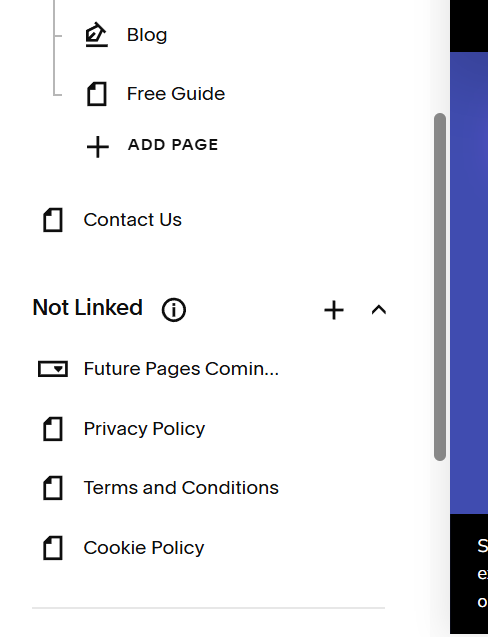
This is helpful when reorganizing your site or preparing a new layout.
How to Save a Page for Later Use
If you want to keep a page but remove it from public view:
Open the Pages panel. Drag the page into Not Linked. Optionally uncheck Enable Page in Page Settings.
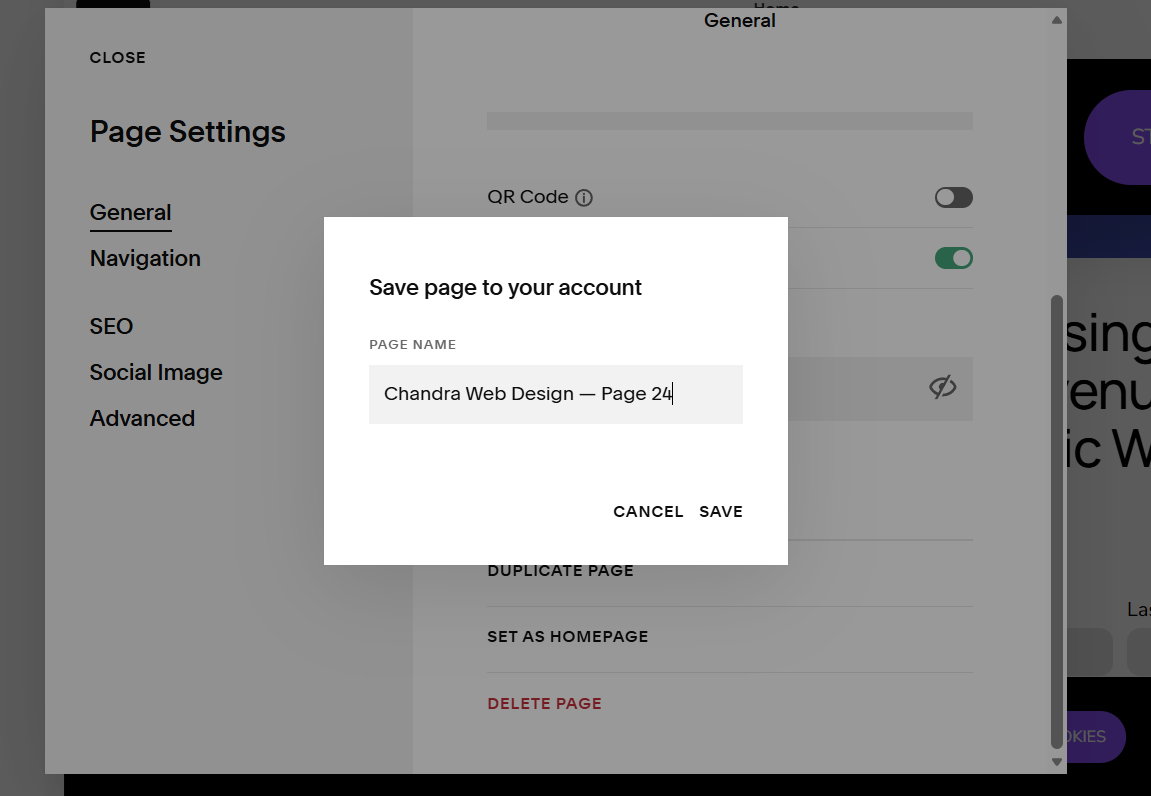
This keeps the page accessible to you but hidden from visitors.
When to Save or Transfer Pages
Saving and transferring pages is useful when you want to:
• Redesign a page without affecting the live version
• Create templates for future pages
• Move content between sections
• Archive old content
• Prepare for a site rebuild or migration
Duplicating and transferring pages keeps your workflow organized and prevents accidental changes to live content.
Squarespace 7.1 vs Older Versions
Squarespace 7.1 uses a unified template system, which makes saving and transferring pages more consistent across your entire site. Older versions like 7.0 used template families, meaning some page types behaved differently.
In 7.1 you get:
• Consistent page duplication
• Universal drag and drop navigation
• More predictable styling when transferring pages
• Cleaner workflows for saving drafts and archived content
If you’re working with older templates, some page types may not duplicate perfectly, especially specialty pages like blogs or galleries. In 7.1, everything behaves the same way, making the process smoother.
Ready to Organize Your Site More Efficiently?
If you want help restructuring your site, preparing for a redesign, or creating a cleaner content workflow, I’d be happy to support you. Saving and transferring pages is one of the easiest ways to keep your Squarespace site organized and future‑ready.
