
How to Add a Classic Editor Section in Squarespace
Squarespace’s Classic Editor is still incredibly useful when you need full control over text formatting, inline images, links, and structured content. Even though Squarespace 7.1 uses a more modern section based editor, you can still access the Classic Editor inside any blank section. Here’s how to add one quickly and when it makes sense to use it.
How to Add a Classic Editor Section in Squarespace
Steps:
Open the page where you want to add your content. Click Add Section. Scroll to the bottom and select Blank.

Inside the new section, click Add Block. Choose Text.
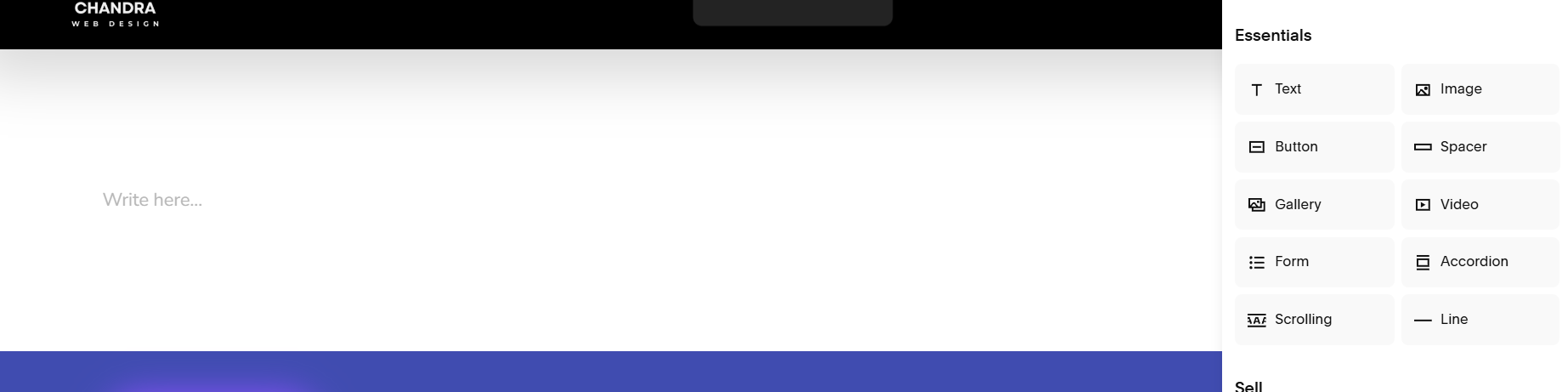
This opens the Classic Editor, where you can format text, add links, insert images, and embed content using the familiar toolbar.
Once you save the page, your Classic Editor content will appear just like any other section.
What You Can Do in the Classic Editor
The Classic Editor gives you granular control over your content. You can:
• Format text with bold, italics, lists, and headings
• Add inline images directly inside text blocks
• Insert links, files, and buttons
• Embed code snippets
• Create structured content without relying on prebuilt layouts
This makes it ideal for long form content, FAQs, blog style pages, and any area where you want precise formatting.
Classic Editor vs Squarespace 7.1’s New Editor
Squarespace 7.1 introduced a more visual, section based editing experience. It’s excellent for layout control, spacing, and design consistency, but it doesn’t always offer the same flexibility inside text blocks.
Classic Editor strengths:
• Better for long form writing
• Inline images and files
• More precise text formatting
• Ideal for content heavy pages
7.1 section editor strengths:
• Stronger layout control
• Better spacing and design tools
• Modern templates and responsive structure
Most sites benefit from using both. The section editor handles layout, while the Classic Editor handles detailed content inside those layouts.
Ready to Build Stronger, More Flexible Pages?
If you want help deciding when to use the Classic Editor or how to structure long form content in a cleaner, more intentional way, I’d be happy to support you. Thoughtful content structure is one of the easiest ways to elevate your Squarespace site and create a smoother experience for your visitors.
