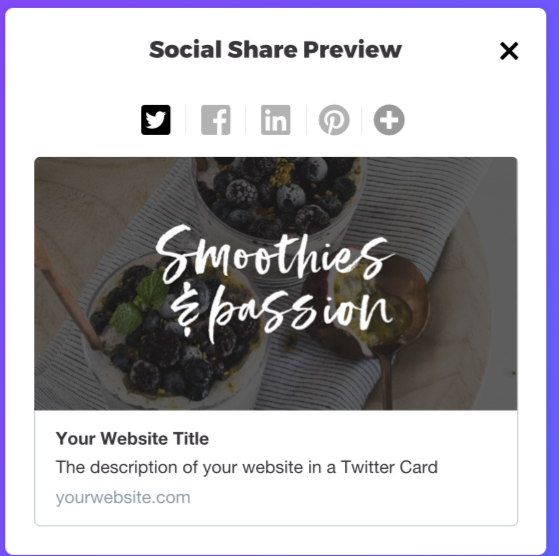
When someone shares your website on social media, the preview image that appears is your social image. It’s a small detail that makes a big impact; the right image can boost clicks, reinforce your brand, and make your content look intentional across every platform. Squarespace makes it easy to set a custom social image for your entire site or for individual pages.
Below is a simple, clear walkthrough on how to add a social image in Squarespace.
What Is a Social Image?
A social image is the thumbnail that appears when your site or a specific page is shared on platforms like Facebook, X, LinkedIn, or iMessage. If you don’t set one, Squarespace will auto‑generate a preview — which often means a random image or a cropped screenshot. Setting your own ensures your brand always shows up looking polished.
How to Add a Social Image to Your Entire Squarespace Site
If you want one consistent image to represent your whole website, you can upload a site‑wide social image.
Steps:
Open the Website panel.
Click Marketing.
Click Social Sharing.
Under Social Image, click Add Image.
Upload your image or choose one from your library.
Click Save.
Once saved, this becomes the default image used whenever someone shares your homepage or any page without its own custom social image.
How to Add a Social Image to a Specific Page
If you want different pages to have their own unique preview images — for example, blog posts, services pages, or portfolio items — you can set a page‑level social image.
Steps:
Open the Pages panel.
Hover over the page and click Settings.
Click the Social Image tab.
Click Add Image.
Upload your image or select one from your library.
Click Save.
This image will override your site‑wide social image for that specific page.
Tips for Choosing the Perfect Social Image
A strong social image can dramatically improve your click‑through rate. Here’s what works best:
Use a clean, high‑contrast image
Include your brand colors or logo
Keep text minimal (social platforms crop aggressively)
Aim for 1200 × 630 px for best results
Make sure the subject is centered
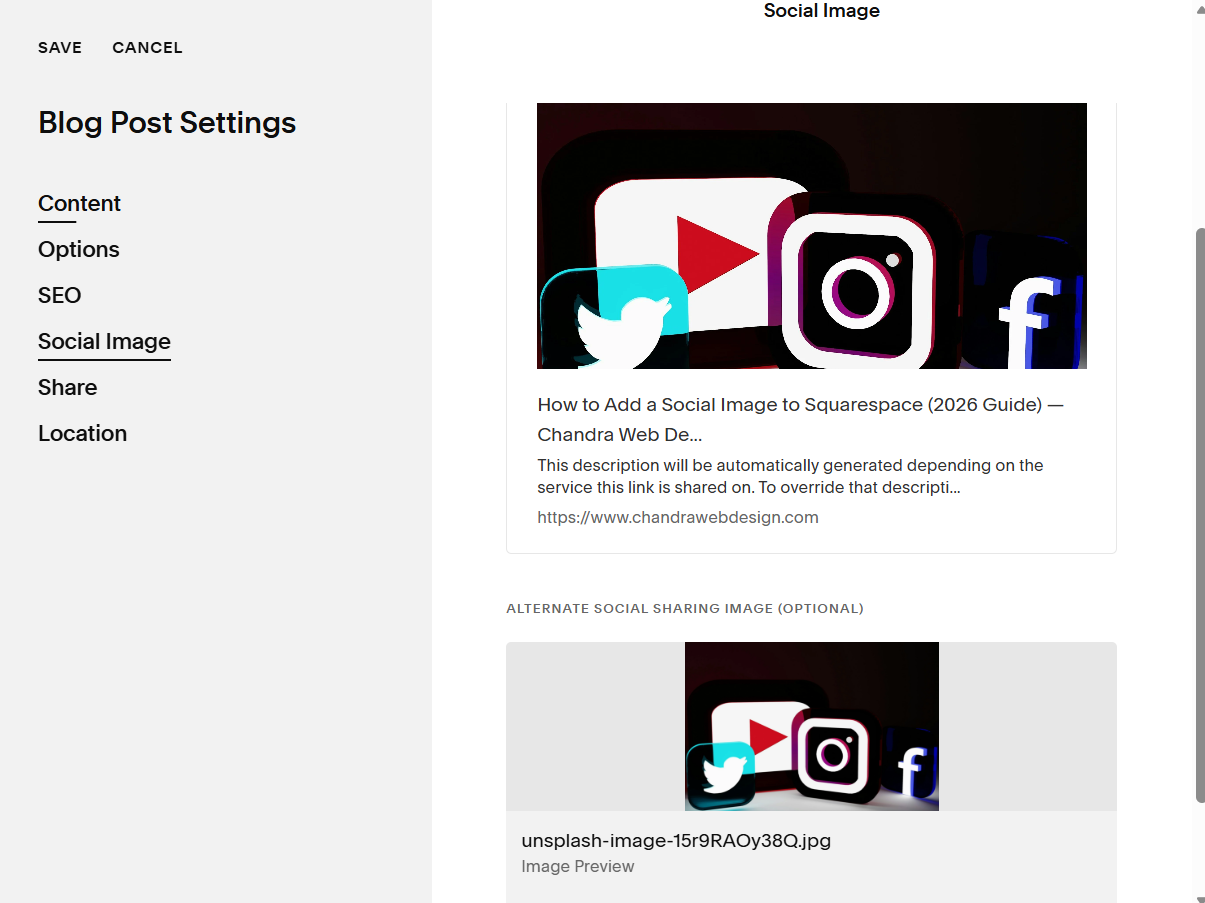
Abstract graphic designs and landscape images tend to work best.
For instance in the image below I have an image with no text, uses a natural image, can be cropped easily without loss and is still aesthetic.

Final Thoughts
Adding a social image in Squarespace is one of the quickest ways to elevate your brand presence online. Whether you’re sharing a blog post, promoting a service, or simply tightening up your site’s presentation, a custom social image ensures your content always looks intentional and professional.
If you want help designing a standout social image or optimizing your site’s branding, I’m always here to brainstorm with you.