Whether you’re updating a downloadable PDF, replacing a client resource, or keeping your file library organized, knowing how to edit a file name in Squarespace is incredibly useful. Clean, intentional file names also help with SEO, accessibility, and professionalism—especially when those files are shared publicly.
Squarespace makes the process quick and straightforward. Below is a clear walkthrough of how to rename a file and how to delete one if you no longer need it.
How to Edit a File Name in Squarespace
If you’ve uploaded a file and want to update its name, you can do it directly inside the link editor.
To edit the name of a file you uploaded:
In the link editor, hover over the file and click the pencil icon.
Edit the file name in the field.
Press Enter.

Screenshot of the link editor with the pencil icon highlighted.
How to Delete a File in Squarespace
If you no longer need a file, you can remove it from your site with one click.
To delete a file:
To delete a file, hover over the file in the link editor and click the trash can icon.

Important Note About File Deletion
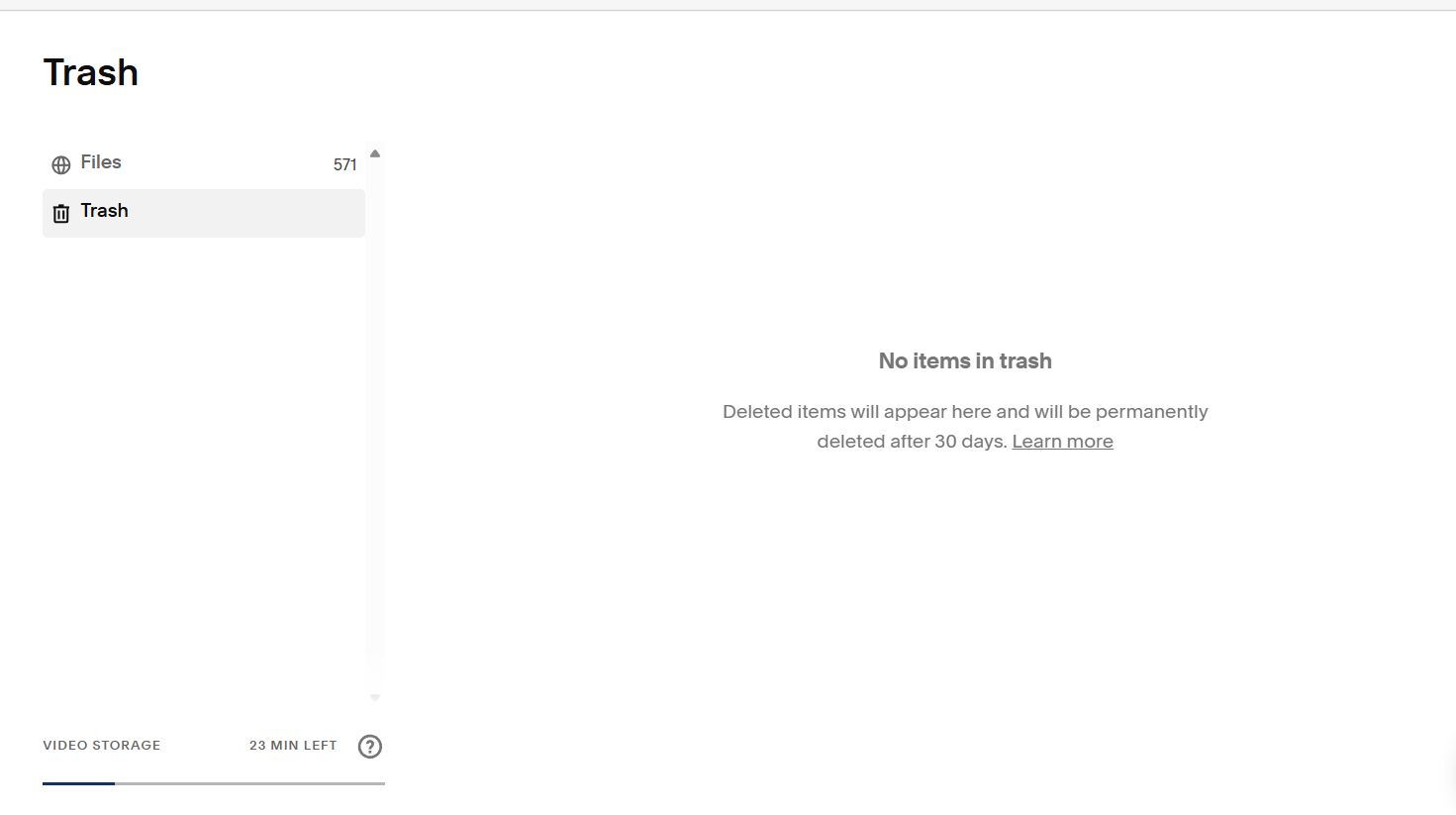
Even after deleting a file from your site, the file may still exist temporarily on Squarespace’s content delivery network (CDN). This means the file can still be accessed if someone has the direct URL.
To learn more about fully removing files, visit Squarespace’s guide on image and file URLs.
Final Thoughts
Renaming and managing files in Squarespace is a small but meaningful part of keeping your site organized and professional. Whether you’re updating client documents, replacing outdated downloads, or optimizing your file names for SEO, these quick steps help keep everything clean and consistent.
If you need assistance from a Squarespace expert on managing your files, get in touch.