Your site’s navigation is one of the first elements visitors interact with, so its colors play a huge role in how polished, readable, and on‑brand your website feels. Whether you’re refining your header, adjusting link contrast, or creating a more premium look, Squarespace gives you full control over your navigation color settings.
Below is a simple, clear guide to help you update your navigation colors in Squarespace.
Understanding Navigation Colors in Squarespace
Navigation colors control the appearance of your header links, active states, hover states, dropdown menus, and mobile navigation. These settings live inside your site’s Styles panel, and the exact options you see depend on your template and header layout.

How to Edit Navigation Colors in Squarespace
Squarespace organizes color settings into themes. Your navigation inherits colors from the theme applied to your header, but you can customize them directly.
Steps:
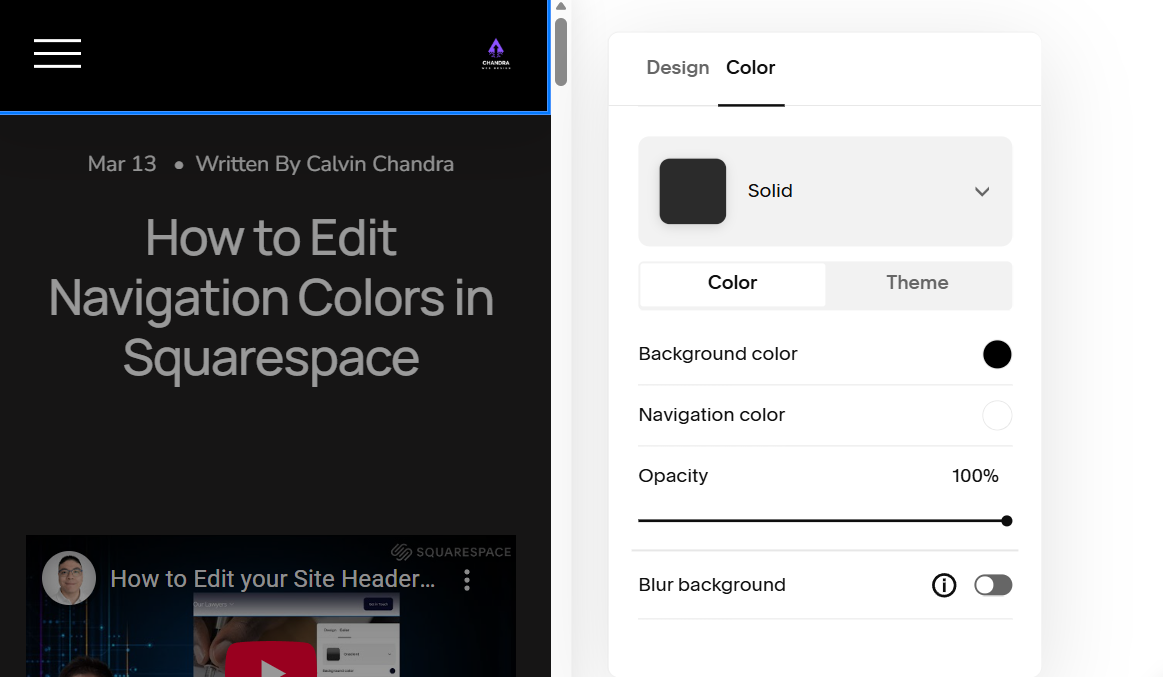
Open the Site Styles panel. Click Colors. Select the color theme your header is using. Scroll to the Header or Navigation section (varies by template). Adjust the colors for:
Navigation links
Active link
Hover state
Dropdown background
Mobile menu icon Click Save.
Once saved, your navigation updates instantly across your site.
Tips for Choosing the Right Navigation Colors
A strong navigation color palette improves usability and reinforces your brand. Here’s what to keep in mind:
Contrast is everything — your links should be easy to read at a glance.
Match your brand palette — keep navigation consistent with your logo and hero section.
Test on mobile — mobile menus often use different color settings.
Check hover and active states — subtle changes help users understand where they are.

Editing Navigation Colors for Transparent Headers
If your site uses a transparent header (common on modern hero layouts), your navigation colors may shift depending on the section behind it. In this case:
Adjust the Transparent Header color theme
Ensure your text stays readable over images
Use a subtle shadow or background tint if needed
Transparent headers often require a bit more fine‑tuning, but they can look incredibly premium when done right.
Editing Navigation Colors on Mobile
Mobile navigation uses its own set of color controls. To update them:
Open Site Styles. Click Colors. Select the theme used for mobile. Adjust:
Mobile menu icon color
Mobile menu background
Mobile link colors Click Save.
Final Thoughts
Updating your navigation colors in Squarespace is one of the fastest ways to elevate your site’s visual hierarchy and brand presence. With just a few adjustments in the Styles panel, you can create a header that feels intentional, readable, and aligned with your overall design direction.
If you need help designing header on your Squarespace website, get in touch with our experts.