
Add Links in Accordion Blocks in Squarespace
Accordion blocks are one of the most flexible content tools in Squarespace. They allow you to organize information into clean, collapsible sections that are perfect for FAQs, service details, policies, or any content that benefits from a structured layout. A common question many users have is whether you can add links inside an accordion block.
The good news is that you can, and the process is very straightforward. Below is a clear guide to help you add links inside accordion content so your visitors can access additional pages, downloads, or resources without disrupting the flow of your design.
Why Add Links Inside Accordion Blocks?
Adding links inside accordion text is useful when you want to:
• Direct users to related pages
• Link to PDFs, forms, or downloadable files
• Add “Learn more” or “Book now” calls to action
• Provide deeper explanations without cluttering the page
Because accordion blocks hide content until clicked, links inside them feel intentional and user friendly.
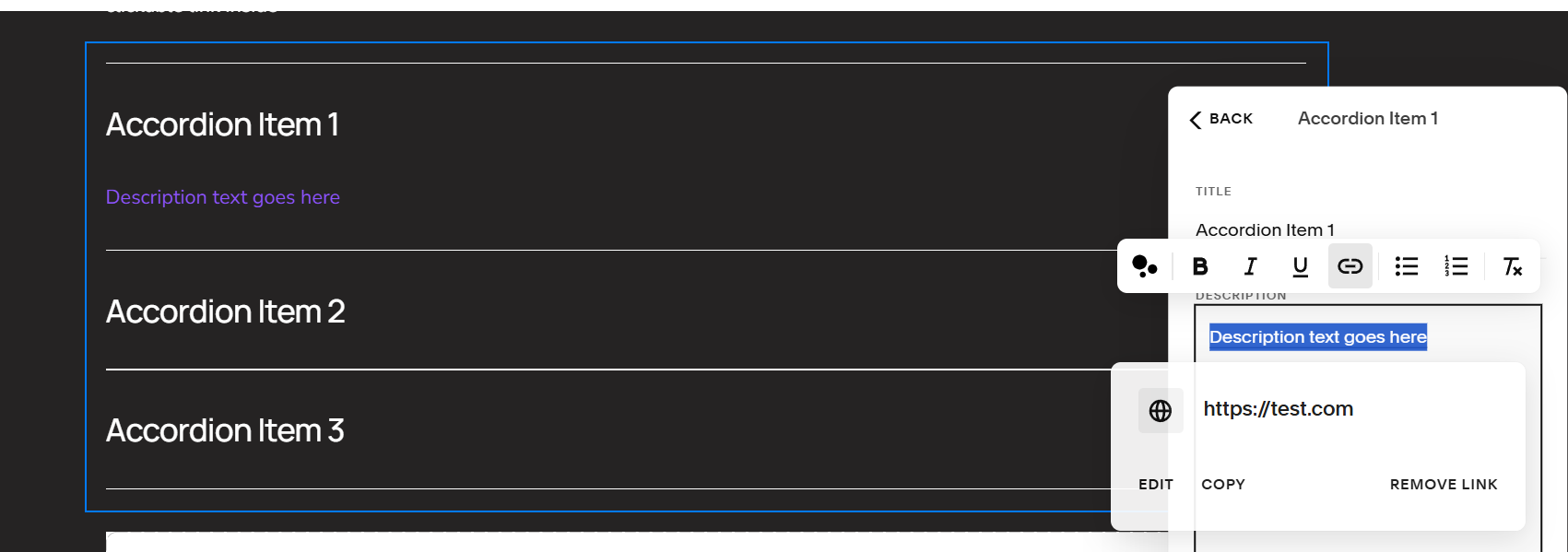
How to Add Links in Accordion Blocks in Squarespace
Squarespace does not show a visible link button inside the accordion editor, but adding a link works exactly the same as it does anywhere else in the platform.
Steps:
Open the page containing your accordion block. Click Edit on the accordion block. Highlight the text you want to turn into a link. Click the link icon in the text toolbar. Choose your link type such as page, URL, file, or email. Click Apply. Click Save on the page.
Your link will now appear inside the accordion content and will remain clickable whether the accordion is open or closed.
Linking to Files Inside Accordion Blocks
If you want to link to a PDF, image, or downloadable file, you can upload it directly through the link editor.
Steps:
Highlight your text.
Click the link icon.
Choose File.
Upload your file or select one from your library.
Click Apply.
This is ideal for menus, brochures, intake forms, or client resources.

Styling Links Inside Accordion Blocks
Depending on your template and color theme, your links may inherit default styling. To adjust how they look:
Open Site Styles. Click Colors. Select the theme applied to your accordion section. Adjust Link, Hover, or Active colors. Click Save.
This ensures your links stand out clearly inside the accordion content.
Tips for Using Links in Accordions Effectively
• Keep link text short and clear
• Use descriptive labels such as “Download menu” or “View pricing”
• Test your links on both desktop and mobile
• Make sure your link color has enough contrast for accessibility
Ready to Elevate Your Squarespace Site?
If you want help refining your accordion layouts, improving your site’s usability, or polishing your overall design, I’d be happy to support you. Thoughtful details like linked accordion content can make your site feel more intuitive and professional, and I’m here to help you take it even further.
